
WakeBox review
 Analysis by GetAllApps
I judge an alarm clock by what happens when I am tired, not by how many settings it offers. Will I notice it? Can I set it up without a fuss? Does it suit the way I actually wake up? WakeBox is a productivity app built around a focused idea: alarms can take over the screen, rather than relying on a small notification that is easy to miss. That makes it worth considering if an ordinary phone alarm has failed you, though it is not automatically the best fit for everyone.
What matters in choosing an alarm
Before switching alarm apps, I would think about the problem I am trying to solve. If I sleep through quiet alerts, the most relevant part of WakeBox is its full-screen alarm presentation. If the issue is forgetting to set an alarm, a more elaborate interface will not fix the habit by itself. And if I need a gentle wake-up routine, gradual sound or smart scheduling would matter more than an alert that is hard to overlook.
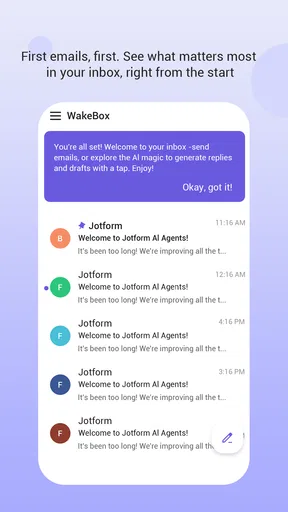
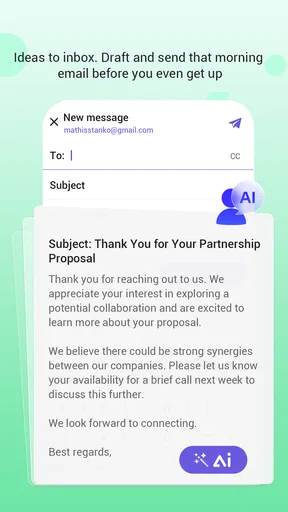
WakeBox’s store summary also mentions optional email access. That may be useful to people who want to use the email-related option, but it is a separate consideration from the core alarm job. I would treat it as optional rather than assume it is necessary to set an alarm. If you prefer to keep an alarm clock entirely separate from email, that distinction may shape your decision.
It is a free productivity app from BLYTHEWOOD NY LLC, with a Mature 17+ age rating. The app is listed at version 1.2.6, and its minimum operating-system requirement is 7.0. Those details help establish whether it is a practical candidate for your device, but the more important question is whether its approach matches your mornings.
A more noticeable kind of alarm
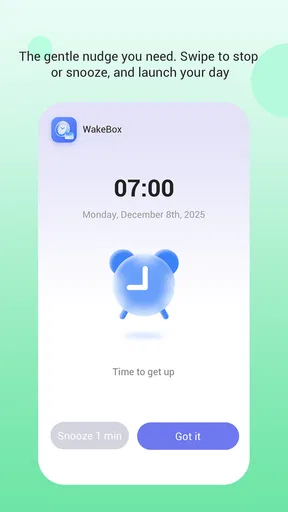
Many people start with the clock already included on their phone. That is often the sensible choice: it is familiar, quick to reach, and may cover basic scheduling without adding another app. WakeBox has a clearer reason to enter the picture when a conventional alarm’s presentation is not assertive enough. A full-screen alert gives the wake-up moment greater prominence than a low-key notification.
That does not mean every user needs a more forceful screen. A loud or prominent alarm can be useful for someone who tends to dismiss subtle alerts while half asleep, but it could be less appealing in a shared bedroom or when a phone is used near other people. I would consider where the phone sits at night and whether an attention-grabbing alert suits the room, not just whether it sounds useful in theory.
Where WakeBox has a practical edge
The strongest case for WakeBox is its narrow focus on being noticed. A full-screen interruption can make the alarm feel harder to overlook than the standard presentation many people are accustomed to. That is a concrete difference to evaluate, not a promise that it will make anyone wake up on time: sleep habits, volume, device placement, and personal routine still matter.
One useful way to test it is to set a low-stakes alarm first, such as a reminder to start getting ready, rather than making it your only alarm for an important morning on day one. This lets you see how the alert appears on your device and whether the interaction feels clear when you are not fully alert. Once you know what to expect, you can decide whether it belongs in your regular routine.
A second practical tip is to make the phone’s location part of the test. An alert designed to fill the screen is less useful if the device is buried under bedding or placed where you cannot see it. Try keeping it in a stable, visible spot and check that the alert is easy for you to respond to. This is not a special setting; it is a simple way to judge whether WakeBox’s central approach works in your own bedroom.
For someone who uses alarms to mark transitions, the app may also be worth trying beyond the morning. A person working from home might set an alarm to signal the end of a break or the time to leave for an appointment. In those situations, a prominent screen can serve as a clear prompt. The same quality may be excessive if you only need a quiet nudge during a meeting or in a shared space.
Email access is a separate decision
The optional email access is worth thinking about on its own, rather than treating it as part of the alarm’s basic value. If you want the email-related option, consider whether you are comfortable connecting that part of your routine to an alarm app. If you do not want that, the word “optional” matters: you can weigh WakeBox primarily as an alarm tool without making email the reason to install it.
When choosing any app that offers access to another account, I recommend pausing at the permission step and reading what the app asks for before proceeding. Only grant access if the feature is useful to you. That is especially sensible here because the core appeal is the wake-up alert, while email is an additional option rather than the defining reason most people would seek an alarm clock.
How it compares with familiar alternatives
The built-in clock is the natural alternative for people who want a straightforward alarm with minimal setup. If it already wakes you reliably, switching adds little. WakeBox is more compelling when you specifically want a full-screen alert and are willing to try a dedicated app for that experience. I would not replace a dependable routine just because a separate app sounds more specialized.
People who prefer a gradual wake-up, sleep tracking, a collection of tones, or broader scheduling tools may be better served by an alarm app designed around those priorities. I would not assume WakeBox includes those approaches. Its clear point of distinction is the prominence of the alert, so compare that with the specific feature you currently miss rather than with a long checklist of imagined capabilities.
There is also a trade-off between simplicity and control. A dedicated alarm may feel like a better fit than the default clock if the alert style is the problem, but adding an app means another interface to learn and another place to check when something goes wrong. If you rely on alarms for work, travel, or caregiving, test the app in ordinary circumstances before making it the sole part of a critical routine.
Everyday use and the cost of switching
Imagine needing to leave early for an appointment after a restless night. You set WakeBox before bed, place the phone where you can see it, and use a full-screen alert as the prompt to get moving. The benefit is not that the app guarantees a smooth morning; it is that the alert is designed to be visually prominent at the moment you need to respond. If you tend to dismiss alarms automatically, that may help you notice the interruption, but you still need a routine that gets you out of bed.
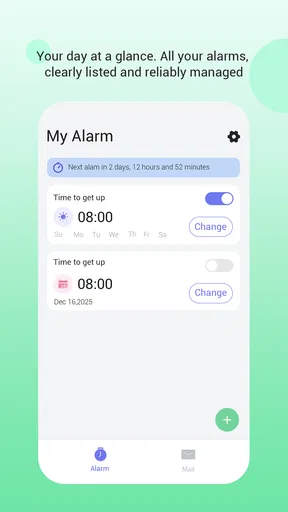
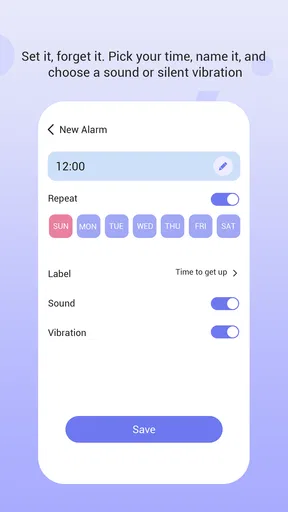
Switching is easy to underestimate. You have to learn where the alarm controls are, decide whether the email option is relevant, and check that the alert behaves as you expect on your device. Keep your existing alarm arrangement until you have tested WakeBox at a convenient time. For an important day, using a familiar backup while you evaluate a new alarm is a prudent choice, not a verdict against the app.
In the app store, WakeBox has a 4.1 average from around 2,600 ratings, and it has passed one million installs. Those figures suggest that it has attracted a substantial audience, but they cannot tell me whether its alert style will suit your room, sleep, or phone habits. I would use them as context, then make the decision through a practical test.
Its free price lowers the barrier to trying it, but “free” should not replace checking the choices shown during setup, especially around optional email access. The Mature 17+ rating is also relevant if you are selecting apps for a younger user or managing a device with age-related restrictions. Those are straightforward checks to make before you build the app into a daily routine.
Who should choose it—and who should skip it
I would recommend WakeBox to someone whose main complaint is that ordinary alarm notifications are too easy to miss, and who wants a more prominent wake-up screen. It also makes sense for people who want to test a dedicated alarm without paying to begin. The full-screen approach is specific enough to give it a reason to exist alongside a phone’s standard clock.
I would skip it if your current alarm already works well, if a prominent alert would disturb someone nearby, or if your priority is a feature-led sleep or wake-up routine rather than an attention-grabbing alarm. I would also choose a simpler alternative if you want no additional app in your morning workflow. These are not flaws so much as differences in what each kind of alarm is meant to solve.
Overall, WakeBox is a focused option rather than a universal replacement for the clock app. I like that its central purpose is easy to understand: make the alarm more noticeable, with email access left as an option. Try it first in a low-stakes situation, check the alert where you normally keep your phone, and keep a familiar backup until you trust the routine. If you want a full-screen wake-up prompt, that is a sensible reason to give it a chance; if you need a gentler or more specialized alarm experience, another category of app will likely fit better.
Pros and cons
Pros
- Combines alarms with relaxing sounds for a gentler start to the day.
- Lets you choose from different wake-up sounds.
- A simple interface makes alarm setup easy.
- Useful for building a consistent morning routine.
- Offers an alternative to standard phone alarm tones.
Cons
- Sound choices may feel limited for some users.
- Alarm reliability depends on device settings and permissions.
- Background restrictions may affect scheduled playback.
- It may not suit people who prefer loud alarm tones.
- Some features may require payment or in-app purchases.


